
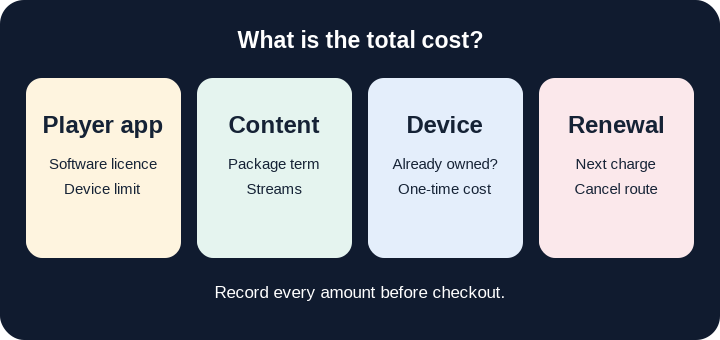
A buyer might see a low-priced player app and assume it unlocks a television catalogue. Another buyer sees a subscription offer and assumes the recommended player will always be free. Neither assumption is safe. The software, content, device and billing term can come from different sellers. Use the steps below to find the actual amount you will pay and what each payment covers.
1. Identify what the player app sells
An IPTV player is software for organizing and opening streams. Depending on the app, it might support a playlist URL, account login or an electronic program guide. The ability to install a player does not by itself grant rights to watch any channel. Read the app-store listing or the developer's own purchase page: does the payment activate the software, remove ads, unlock device features or supply content? Do not infer the answer from the app icon.
Ask whether the licence covers one device, several devices or an account. If you replace a TV later, can you transfer the licence? If the app has a trial period, what happens when it ends? A player fee can be a one-time purchase, recurring charge or optional upgrade. Record the specific terms you are offered rather than assuming that one app's model applies to another.
2. Price the content subscription separately
The content provider's package determines what it advertises, the subscription length, the number of simultaneous streams and its own billing terms. A provider may recommend a player, but that recommendation does not tell you whether the player's fee is included. Ask support a direct question: “Is the player included in this package, and what would I pay to use it on my TV?” Save the answer with the package description.
Check that the particular channels or programs you need are authorized and available in your location. An enormous advertised channel count is not a substitute for a current, specific list. Our subscription-plan guide explains term lengths and connection counts; use it for the content-plan comparison, then return to this page for the additional software and device costs.
3. Add hardware and connection costs only when relevant
If your TV already supports an approved player, you may not need another streaming device. If it does not, compare the upfront hardware price with the inconvenience of using a different screen. A device purchase is not an IPTV subscription, and an internet plan is a separate household service. Do not add a made-up “required” router or VPN to the calculation because a sales page mentions one.
For a household with two televisions, also check the provider's simultaneous-stream allowance. Installing the same app twice is not proof that your subscription permits two streams. Note any second player licence or account upgrade required for the second screen.
4. Use one total-cost worksheet
Write the actual checkout amounts in four rows: content plan, player app, device or accessory, and other mandatory fee. Put the renewal date and renewal amount next to each recurring charge. Do not compare a monthly headline with an annual upfront payment as if both were paid the same way.
| Cost layer | Question to answer | Amount to record |
|---|---|---|
| Content plan | Term and permitted streams? | Current checkout total |
| Player app | Included, one-time, or recurring? | Licence and renewal cost |
| Device | Already owned or new purchase? | Upfront hardware cost |
| Other charge | Mandatory, optional, or avoidable? | Only verified required fees |
For example, a hypothetical $18 one-month content plan plus a $6 one-time player purchase costs $24 at first checkout and $18 in a later month if there are no other charges. That is arithmetic for illustration, not a current price quote for any provider. A different billing model changes the answer.
5. Read the renewal and cancellation rules
A “free” app trial or content trial may turn into a paid term. Before entering payment information, find the exact deadline, renewal amount, cancellation route and whether the app and content plan must be cancelled separately. The US Federal Trade Commission's consumer guidance explains why readers should check trial and automatic-renewal terms before signing up. Keep your own receipt and a copy of the terms shown at checkout.
If you decide not to keep the content plan, use this IPTV subscription cancellation checklist to track what you cancelled and what proof you saved. Check the player app separately if another seller bills it.
If you cannot identify which company will charge you or how to cancel, pause the purchase. Do not rely on a comment or a screenshot of someone else's order; ask the seller about your exact offer.
Before you pay: a five-question check
- Which payment supplies the channels, and which only unlocks the app?
- Will the player work on my exact TV or streaming device?
- How many streams are permitted at the same time?
- What is the complete first payment and every recurring payment?
- How do I cancel the player and content services, if both renew?
To compare the content-package side of this decision, start with our plan and connection guide or buying checklist. This article does not rank a service or claim hands-on testing. Its purpose is to make every cost visible before you commit.